

Providing you have purchased the mobile app, you will find it by clicking your name or Administrator in the top-right corner of your program, then clicking Settings. From the following screen, find "Co-Brand Mobile app."
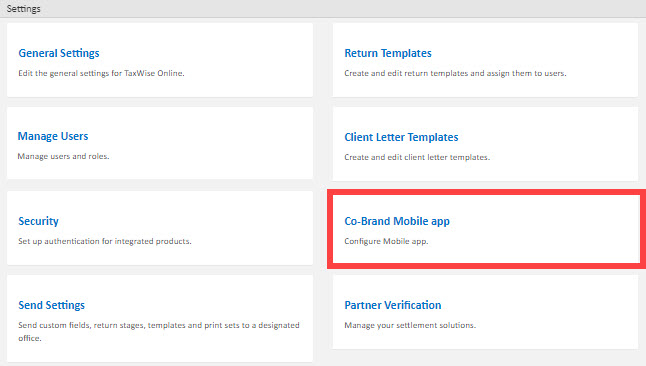
This will take you to a section of the program where you can begin customizing your mobile app for your office's needs.
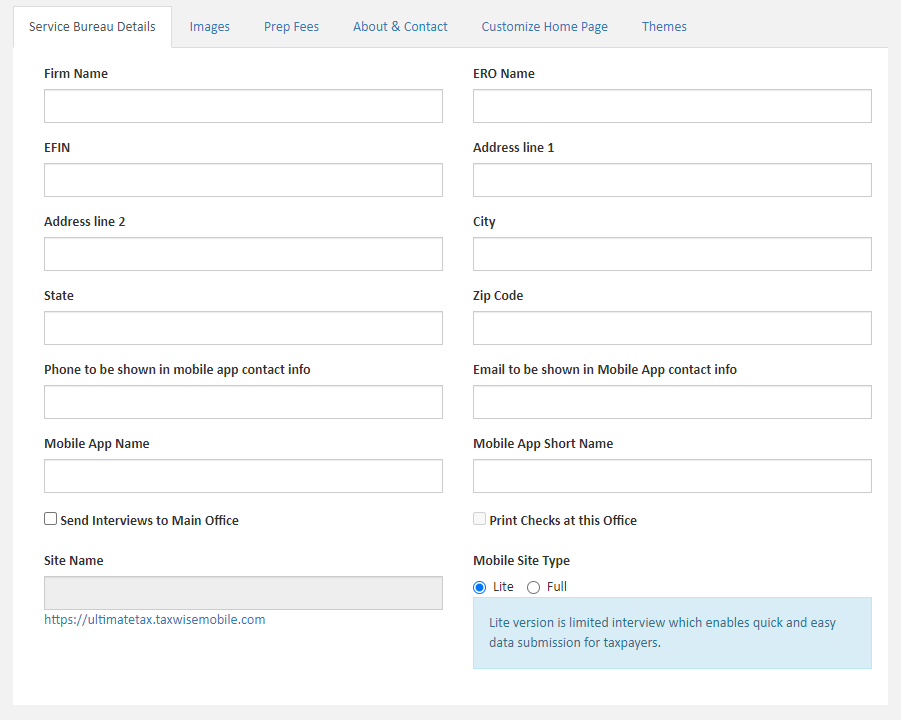
The first screen will go over your office information. Make sure to fill out all contact information that doesn't automatically populate. Make sure you DO NOT CHECK "SEND INTERVIEWS TO MAIN OFFICE." If this box is marked, unmark it. If this box is marked, your customer's returns will not go to your Online software.
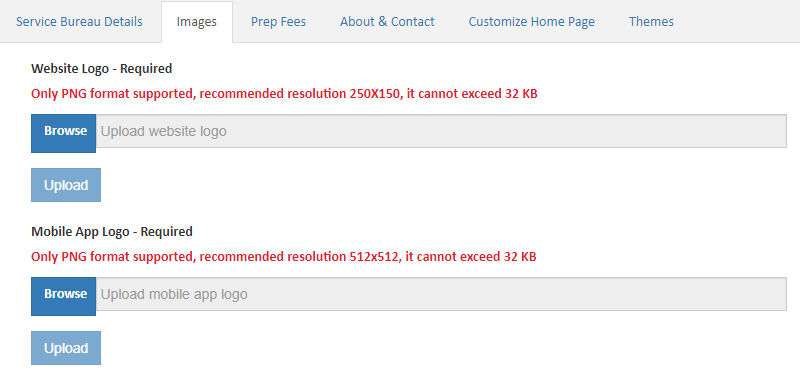
This second screen allows you to upload your custom website logo and mobile app logo. Please read the size requirements for each image and be mindful of this when uploading your images.
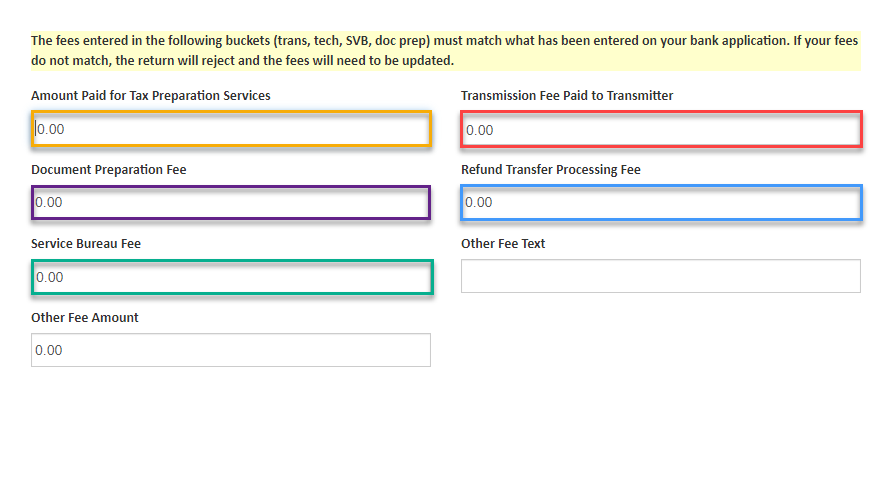
The third screen is where you will enter your fee amounts. These amounts will be from your bank application if applicable.
Tax Preparation Services: These are your fees for preparing taxes. Please make sure these are consistent with the software price sheet fees.
Document Preparation Fee: This fee is not used by either Gannon SB or any Bank Products. If you wish, you can list a custom Document Preparation Fee on your Price Sheet, then also list it here.
Service Bureau Fee: This is normally the Service Bureau fee listed on the Bank Application.
Transmission Fee Paid to Transmitter: This is where the price of doing a bank product return through the bank is listed. (The amount from the "Bank App" line of the bank application form.)
Refund Transfer Processing Fee: Here is where the Tech Fee and Transmission fee from the bank application can be combined and listed.
Other Fee: Used as a customs fee pool that you can use independent of the others.
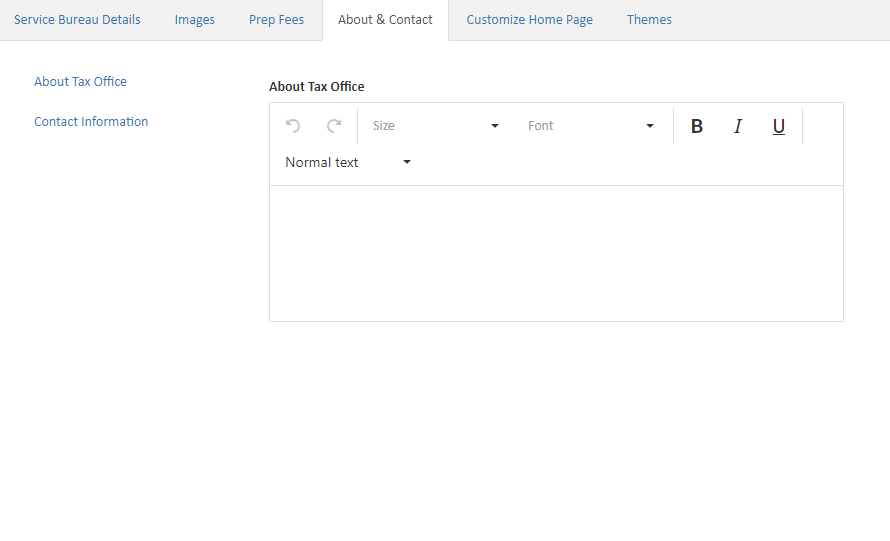
This next screen is the bio screen for your office, allowing you to enter a short body of text promoting your tax office. There is also a section for contact information on this screen.
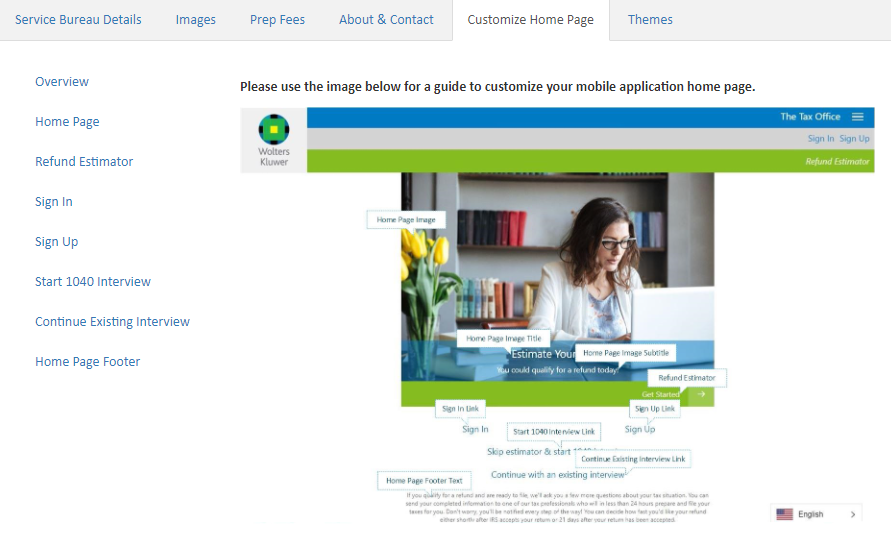
This screen is the most customizable and allows you to change the colors and images of the page your customers see when they visit your mobile site. Please note the size requirements for images. The flags on the image let you know what section you edit while making changes. A stock image is provided in this article that will give you an idea of how an image will translate to the site when uploaded.
The final screen of the mobile app setup allows you to select an overall theme for your site, light, dark, or custom.
Please find our stock image attached to the article.
Comments
Article is closed for comments.